
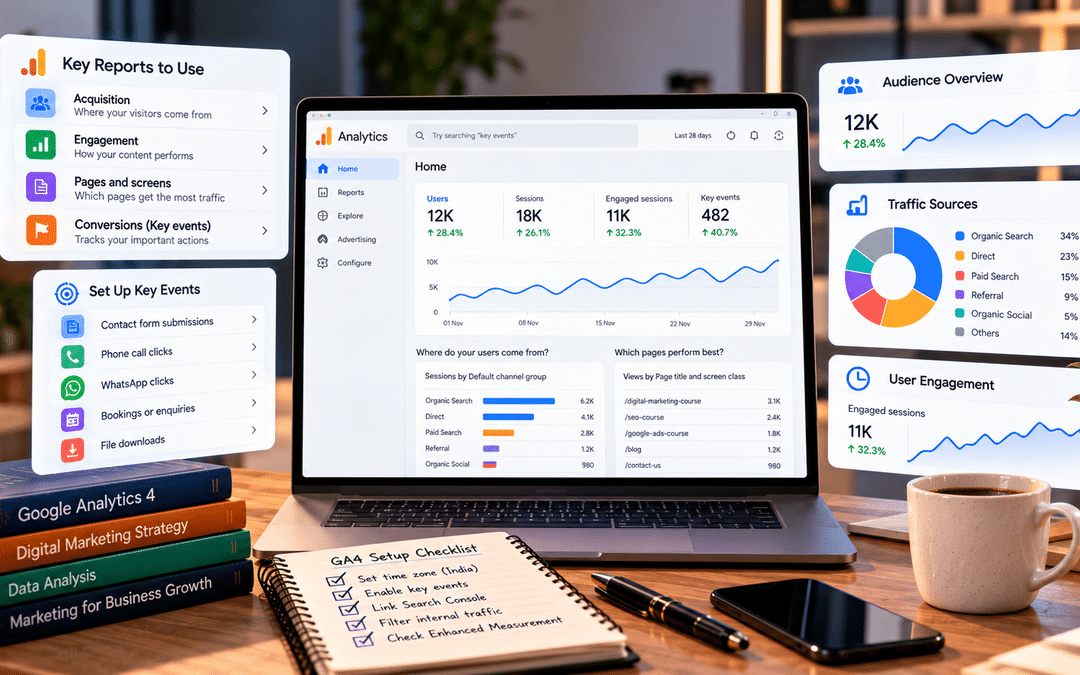
Opening Google Analytics 4 for the first time can feel like walking into a cockpit. Dozens of reports, unfamiliar terms like “engaged sessions” and “key events,” and numbers that don’t seem to match anything else you look at.
Most small businesses respond in one of two ways. They either stop opening it, or they check one number, usually total users, and call it analytics. Neither tells them whether their website is actually bringing in customers.
The good news is that you don’t need most of GA4 to run a small business website well. A handful of reports, a few correct settings, and properly configured key events will answer the questions that matter: where visitors come from, which pages work, and how many inquiries the website generates.
This guide covers exactly that. It’s written for business owners, freshers, and marketers who are new to GA4 and want to set it up properly and use it with confidence, without learning every feature first.
How GA4 thinks: four ideas to understand first
GA4 makes much more sense once you understand a few core ideas. Everything in the reports builds on them.
1. Everything is an event
In GA4, every interaction is recorded as an event: a page loading, a scroll, a click on an outbound link, a form submission, a file download. Each event can carry extra details, called parameters, such as the page it happened on or the link clicked.
GA4 collects some events automatically as soon as it is installed, such as page_view, session_start, and first_visit. Others, like scrolls and outbound clicks, come from a setting called Enhanced Measurement. Other events, such as a click on your WhatsApp button, require setup.
2. Key events are the events that matter to your business
A key event is any event you mark as important, usually an action that brings you closer to a sale or inquiry. For a service business, that’s typically a contact form submission, a phone call click, a WhatsApp click, or a booking.
If you’ve used older versions of Google Analytics, you’ll remember “goals” and later “conversions”. In March 2024, Google renamed GA4 conversions to key events, keeping the word “conversions” for Google Ads. Many tutorials and marketers still say “conversions” when they mean key events, so don’t be confused when you see both.
3. Users and sessions
A user is a person (more precisely, a browser or device) visiting your site. A session is a single visit. One user can have many sessions: someone who checks your clinic’s website on Monday and returns on Thursday to book counts as one user with two sessions.
4. Engagement replaces bounce rate as the main quality signal
GA4 counts a session as engaged if the visitor stays for at least 10 seconds by default, views two or more pages, or triggers a key event. Engagement rate is the share of sessions that were engaged. It’s a more useful signal than the old bounce rate, because a visitor who reads your whole services page for three minutes and then calls you is clearly a good visit, even if they only viewed one page.
Bounce rate still exists in GA4, but it’s now simply the opposite of engagement rate.
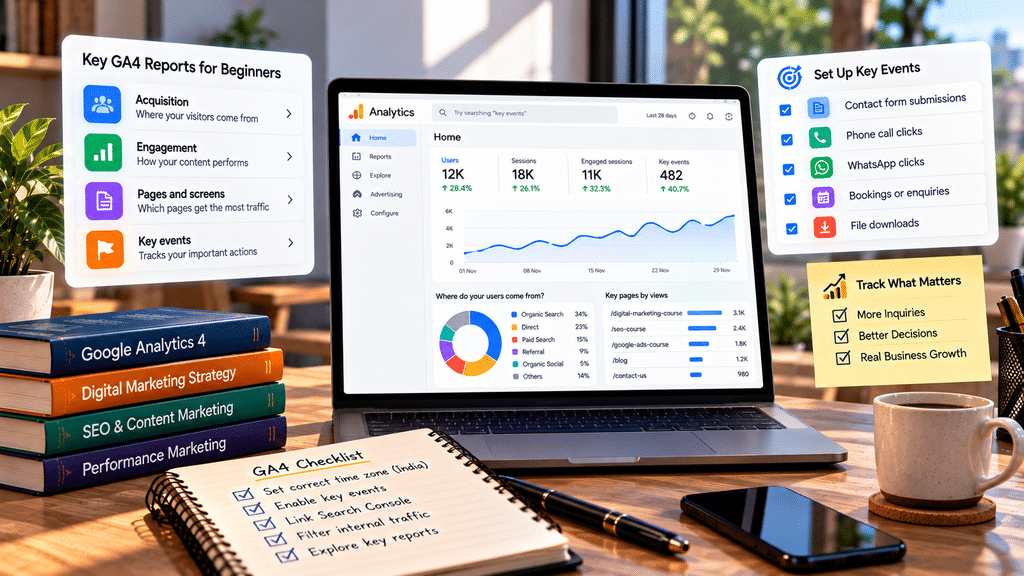
Settings to fix before you trust any report
Many GA4 properties are installed with default settings and never touched again. A few minutes in the Admin section, the gear icon at the bottom left, can make your data much more reliable. GA4 menu labels change from time to time, so if a setting has moved, use the search bar in Admin.
Time zone and currency. In Property settings, set the reporting time zone to India and the currency to Indian rupees. A property left on a US time zone splits your days at the wrong hour, so “yesterday’s” inquiries don’t match your own records.
Data retention. In Data collection and modification, open Data retention. The default is often 2 months, which limits how far back you can analyze detailed data in the Explore section. Change it to the longest option available, typically 14 months, for standard properties. This doesn’t affect standard reports, but it’s easy to forget and can’t be applied retrospectively.
Filter out your own visits. You and your team visit your website constantly, which inflates numbers and distorts behavior. Define internal traffic using your office IP address in the data stream settings, then activate the internal traffic filter in Data filters. Note that many home and mobile connections in India have changing IP addresses, so this works best for a fixed office connection.
Check Enhanced Measurement. In your web data stream, confirm that Enhanced Measurement is on. It automatically tracks scrolls, outbound clicks, site search, video engagement, and file downloads. It can also track form interactions, but this is often unreliable, especially for forms that don’t reload the page. Don’t treat it as a dependable lead count without testing.
Link Search Console. In Product links, connect your Google Search Console property. This adds reports showing which Google searches bring visitors to which landing pages, inside GA4.
Link Google Ads, if you run ads. You can then import your key events into Google Ads as conversions, so your campaigns optimize toward real inquiries.
List unwanted referrals. If customers leave your site to pay, for example through a payment gateway, and then return, GA4 may credit the sale to the payment gateway rather than the source. Add these domains to the unwanted referrals list in your data stream’s tag settings.
The reports that matter for a small business
GA4 has many reports, but a small business website can be run well with five or six. Here they are, with the question each one answers.
| Report | Where to find it | The question it answers |
| Realtime | Reports > Realtime | Is tracking working right now? |
| Traffic acquisition | Reports > Acquisition > Traffic acquisition | Where do visitors come from, and which sources bring inquiries? |
| Landing page | Reports > Engagement > Landing page | Which pages do people arrive on, and which ones lead to inquiries? |
| Pages and screens | Reports > Engagement > Pages and screens | Which pages get attention overall? |
| Events and key events | Reports > Engagement > Events and Key events | How many inquiries, calls, and WhatsApp clicks did we get? |
| Search Console reports | Reports > Search Console (once linked) | Which Google searches bring visitors to which pages? |
Report locations can shift as Google updates the interface, but the report names have been stable.
Realtime: your testing tool
Realtime shows activity in the last 30 minutes. For beginners, its main use isn’t monitoring traffic; it’s testing. After setting up a new key event, open your website on your phone, submit a test form, and watch whether the event appears in Realtime.
Traffic acquisition: where visitors come from
This is the report to check most often. It groups sessions by channel, such as Organic Search, Direct, Paid Search, Organic Social, Referral, and Email.
Don’t stop at the sessions column. Scroll right to see engagement rate and key events for each channel. A common discovery: Organic Social sends plenty of visitors with low engagement and few inquiries, while Organic Search sends fewer visitors who enquire far more often. That changes where you should spend time.
To see more detail, change the main dimension from “Session default channel group” to “Session source/medium”. You’ll then see specific sources like google / organic, instagram.com / referral, or your newsletter.
Landing page: which pages earn their keep
This report shows the first page people saw in each session. For a service business, it reveals which pages start customer journeys and which lead to inquiries.
If a service page gets plenty of landing sessions but almost no key events, it’s attracting the right visitors and failing to convert them. Check whether the page clearly explains the service, shows prices or next steps, and has an obvious call to action.
Pages and screens: what gets attention
This report counts all page views, not just first pages. It’s useful for spotting popular content and pages people return to, such as your fees or contact page.
Events and key events: your inquiry count
The Events report lists every event with its count. Once your key events are set up, the Key events report shows just those that matter. This is the number that tells you whether your website is producing business.
You can also add a key events column to almost any report, which is how you connect traffic to results.
Search Console reports: the bridge to SEO
Once Search Console is linked, you’ll find reports showing the search queries and landing pages for your Google organic traffic. If you don’t see them in the left menu, go to the Library at the bottom of the Reports section and publish the Search Console collection.
Don’t expect the numbers to match the Search Console tool exactly. The two systems measure differently: Search Console counts clicks from Google’s results, while GA4 counts sessions on your site that it was able to record.
How to set up key events
This is the most valuable part of GA4 for a business, and the part most often left undone. Without key events, GA4 can tell you how many people visited but not how many became leads.
Step 1: Decide what counts
List the actions that genuinely represent a potential customer. For most service businesses, that’s three to five actions:
| Action | Suggested event name |
| Contact or inquiry form submitted | generate_lead |
| Phone number tapped | click_to_call |
| WhatsApp button tapped | whatsapp_click |
| Booking completed | book_appointment |
| Brochure or fee sheet downloaded | file_download (collected automatically by Enhanced Measurement) |
generate_lead is one of Google’s recommended event names. Using recommended names where they fit keeps your setup consistent with Google’s documentation and other tools. For the others, any clear, lowercase name with underscores works.
Don’t mark everything. If page views or scrolls are key events, your “inquiry” numbers become meaningless.
Method A: Form submissions with a thank-you page (no code needed)
If your form sends people to a thank-you page after submitting, for example /thank-you/, you can create the key event entirely inside GA4.
- Go to Admin > Data display > Events and click Create event.
- Name the new event generate_lead.
- Add two matching conditions: event_name equals page_view, and page_location contains /thank-you.
- Save. If the option to mark it as a key event appears during creation, turn it on.
- Submit a test form and check Realtime. Once the event appears in the Events list, make sure “Mark as key event” is switched on.
This method is reliable because the thank-you page only loads after a successful submission. If your form shows a message on the same page instead of redirecting, ask your developer to add a thank-you page, or use Google Tag Manager to track the submission.
Method B: WhatsApp clicks (no code needed, usually)
WhatsApp buttons normally link to wa.me or api.whatsapp.com. Because those are external links, GA4’s Enhanced Measurement already records clicks on them as a click event with the link address attached.
To turn that into a key event:
- Go to Admin > Data display > Events and click Create event.
- Name it whatsapp_click.
- Add conditions: event_name equals click, and link_url contains wa.me. Add a second version with api.whatsapp.com if your site uses that format.
- Test by tapping your WhatsApp button, then mark the new event as a key event.
Method C: Phone call clicks (needs Google Tag Manager)
Phone links start with tel:, which Enhanced Measurement doesn’t track. The standard approach is Google Tag Manager, a free tool for managing tracking code:
- In Tag Manager, create a trigger of type Click – Just Links that fires when Click URL starts with tel:. You may need to enable the built-in Click URL variable first.
- Create a Google Analytics: GA4 Event tag with the event name click_to_call, using that trigger.
- Preview and test by tapping your phone link, then publish.
- In GA4, mark click_to_call as a key event once it appears.
If your website runs on WordPress, some analytics plugins can track phone and WhatsApp clicks without Tag Manager. Check what your existing plugins offer before adding another.
Method D: Online bookings
If bookings happen on your own website, track the booking confirmation page with Method A. If you use a third-party booking platform, tracking depends on whether it supports GA4 integration. If it doesn’t, track clicks on your “Book now” button as a softer signal of intent.
Be honest about what these numbers mean.
A click_to_call event means someone tapped your number, not that the call connected. A whatsapp_click means someone opened WhatsApp, not that they sent a message. These are strong signals of intent, but compare them with your actual calls and chats each month to understand the gap.
New key events can take up to a day or two to appear in standard reports, even when they show in Realtime immediately. Marking an event as a key event also only applies from that point forward; it doesn’t change past data.
Tracking visitors from ChatGPT and other AI assistants
More people now find businesses by asking ChatGPT, Gemini, or Claude rather than searching. Until recently, visits from those tools were scattered across Referral and Direct so that most businesses couldn’t see them.
That changed in 2026. On May 13, 2026, Google added an AI Assistant channel to GA4’s Default Channel Group. When GA4 recognizes that a visit came from a supported AI assistant, it assigns the medium ai-assistant and groups the session under its own channel. No setup is needed.
To see it, open Reports > Acquisition > Traffic acquisition and look for the AI Assistant row in the channel list. Change the dimension to “Session source/medium” to see which assistant each visit came from.
What it doesn’t capture
- Older data. The new channel isn’t retroactive. AI visits from before it reached your property stay in Referral.
- Visits without referrer information. Some AI apps don’t pass along where the visitor came from, so those visits still appear as Direct. Analyses of AI traffic suggest this is a significant share, so treat the AI Assistant number as a minimum, not the full picture.
- Google’s own AI features. Clicks from AI Overviews and AI Mode in Google Search are generally counted as Organic Search, not as AI Assistant traffic. To see how often your pages appear in those features, use the generative AI report in Search Console.
Even with these gaps, the channel is worth watching. Compare its engagement rate and key events with other channels to see whether visitors referred by AI tools are actually becoming customers.
For more on how AI search affects your visibility, read our guide to GEO vs AEO vs SEO.
Worked example: an interior design studio in Bangalore
This is a hypothetical example showing how the pieces fit together.
The business. A small interior design studio in JP Nagar gets most of its leads through its website. Visitors either fill in a consultation form, tap the phone number, or message on WhatsApp. The web developer installed GA4 two years ago and hasn’t touched it since. The owner only knows that the site gets “around 3,000 users a month”.
The setup, done in an afternoon:
- Time zone changed to India, currency to rupees, data retention to 14 months.
- Added the studio’s office IP address as internal traffic and activated the filter.
- Search Console and Google Ads linked.
- The consultation form already redirects to /thank-you/, so a generate_lead event is created from that page view (Method A) and marked as a key event.
- A whatsapp_click event is created from clicks on wa.me links (Method B).
- A Tag Manager trigger and tag track click_to_call (Method C).
- Test each event on a phone and check it in Realtime.
What the first month shows. These figures are illustrative:
| Channel | Sessions | Engagement rate | Key events |
| Organic Search | 1,400 | 62% | 38 |
| Paid Search | 900 | 48% | 21 |
| Organic Social | 1,100 | 31% | 4 |
| Direct | 500 | 55% | 12 |
| AI Assistant | 40 | 70% | 3 |
The owner assumed Instagram was the studio’s main source of business because it got the most visible attention. The data tells a different story. Social sends plenty of visitors but few inquiries, while organic search brings the most leads. The landing page report adds another insight: the “modular kitchen” page attracts strong search traffic but rarely leads to inquiries, because it has no pricing guidance and no call to action until the very bottom.
The decisions that follow: add price ranges and a consultation button near the top of the kitchen page, invest more in content around high-intent services, and treat Instagram mainly as a portfolio and trust channel rather than a lead source.
None of this required advanced analytics. It required the right settings, three key events, and the right two reports.
Common beginner mistakes
Judging the website by users alone. Traffic is only useful if it turns into inquiries. Always look at key events alongside sessions.
Never setting up key events. Without them, GA4 can’t tell you which channels or pages produce leads. This is the single biggest gap in most small business setups.
Marking too many events as key events. If page views, scrolls, and every click count as “conversions,” the number stops meaning anything.
Trusting Enhanced Measurement’s form tracking without testing. It often misses submissions or counts interactions that weren’t real submissions. Test it, or use a thank-you page.
Installing GA4 twice. A theme setting, a plugin,n and a developer’s manual code can each add the tracking tag, double-counting page views. If engagement looks oddly perfect or page views seem doubled, check for duplicate installations.
Leaving default settings. A US time zone, two-month data retention,n and unfiltered internal visits all quietly distort the data.
Expecting GA4 to match other tools exactly. GA4, Search Console, Google Ads, and your CRM count different things in different ways. Look for consistent trends, not identical numbers.
Reacting to one day or one week. Small websites have small numbers that swing a lot. Compare months, and compare with the same period last year, especially when seasonality matters.
Not checking after website changes. A redesign, a new form plugin, or a changed thank-you page URL can silently break key events. Test them every time the site changes.
Frequently asked questions
Is GA4 free?
Yes. The standard version of Google Analytics 4 is free. A paid version, Analytics 360, exists for large organizations with very high data volumes, but small and medium businesses don’t need it.
What is the difference between key events and conversions in GA4?
They’re the same idea. Google renamed GA4 “conversions” to “key events” in March 2024 and now uses “conversions” mainly for Google Ads. When you import a GA4 key event into Google Ads, it becomes a conversion there.
How many key events should a small business track?
Usually three to five, covering the actions that represent a real potential customer, such as form submissions, call clicks, WhatsApp clicks, and bookings.
Why don’t my GA4 numbers match Search Console or Google Ads?
Each tool measures differently. Search Console counts clicks from Google’s results, Google Ads counts ad clicks, and GA4 counts sessions it can record on your site, which can be affected by ad blockers, consent choices, and slow page loads. Compare trends rather than expecting identical numbers.
Do I need Google Tag Manager?
Not for basic setup. GA4’s own event creation handles thank-you page forms and WhatsApp link clicks. Tag Manager becomes useful for phone call clicks, forms without thank-you pages, and more advanced tracking.
How long does it take for data to appear in GA4?
Realtime shows activity within seconds. Standard reports usually take up to a day or two to fully process, which is why new key events may not appear in reports immediately.
Can GA4 show traffic from ChatGPT?
Yes. Since May 2026, GA4 includes an AI Assistant channel that automatically groups visits from recognized AI assistants such as ChatGPT, Gemini, and Claude. Some AI visits still appear as Direct when the app doesn’t pass referrer information.
Where can I learn GA4 hands-on?
The fastest way is to set it up on a real website and use it every week. Google’s Skillshop offers free Google Analytics training and certification. At Web Marketing Academy, analytics is taught as part of hands-on digital marketing training, where learners set up tracking and read reports on live project websites.
