
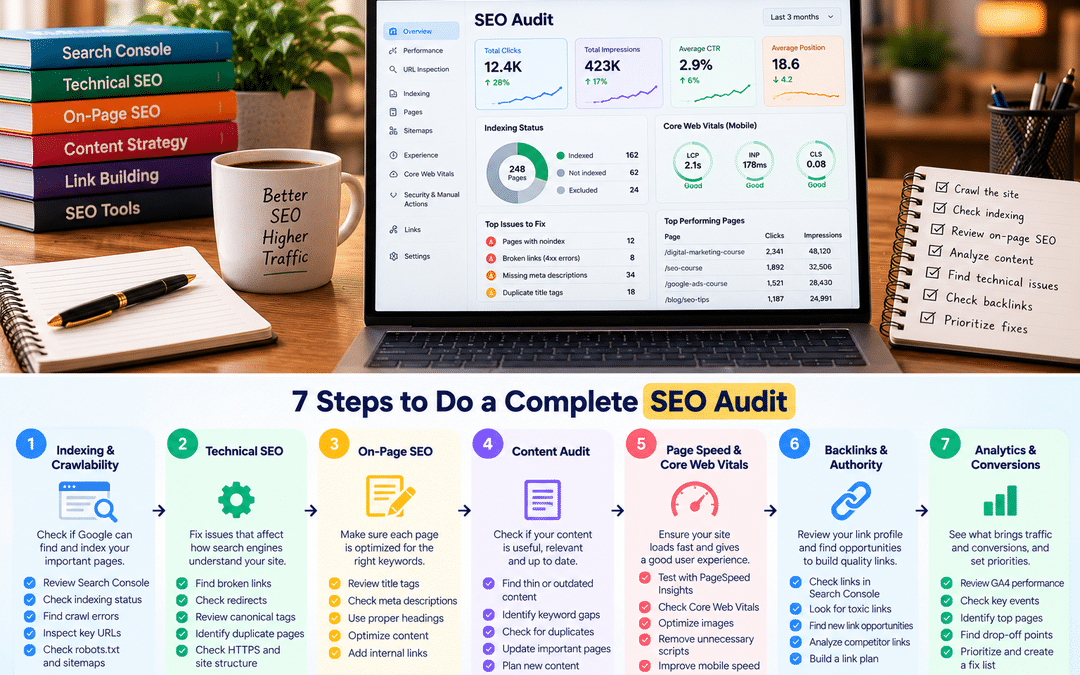
Most SEO audits fail in one of two ways. Some are 80-page PDFs generated by a tool, listing hundreds of “issues” with no sense of which ones matter. Others are a glance at page speed and a few title tags, missing the real problem holding the site back.
A useful audit sits between the two. It checks the things that genuinely affect whether a site can be found, understood, and chosen in search, then ranks the findings by impact so the owner knows what to fix first.
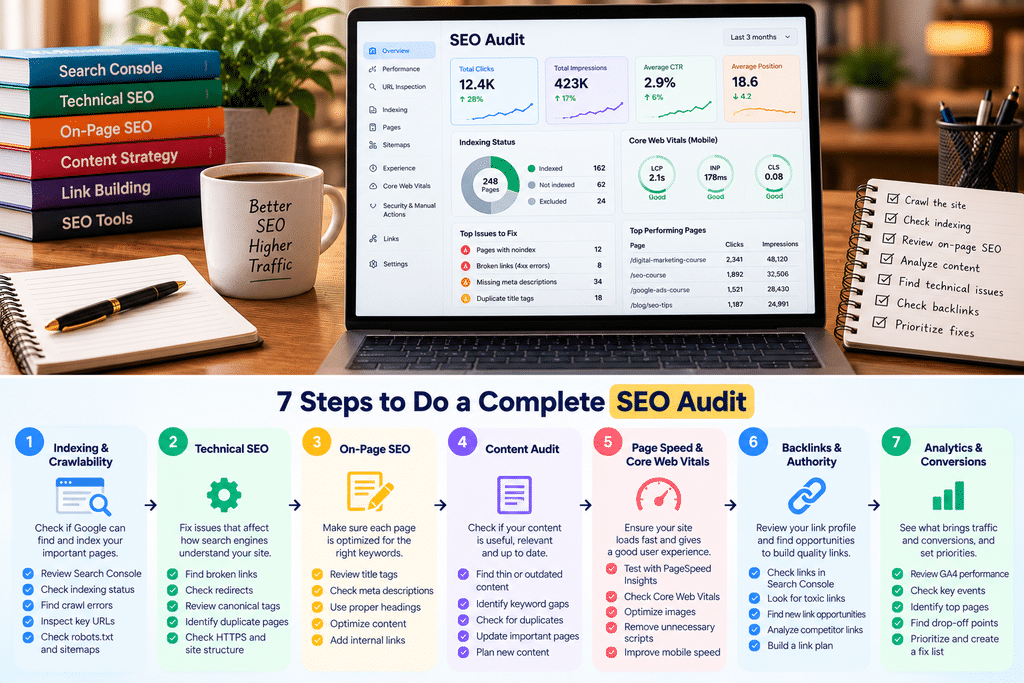
This guide walks through a seven-step SEO audit you can do with free tools. It’s written for freshers, in-house marketers, and small business owners, and it suits the sort of website most Indian SMEs run: a WordPress or similar site with a few dozen to a few hundred pages. At the end, you’ll find a checklist you can copy and reuse.
Decide the scope first.
Before opening any tool, answer three questions:
- Why are you auditing? A traffic drop, a redesign, a new client, a periodic health check? The reason decides where to look hardest. For a sudden drop, start with our core update diagnosis framework.
- What matters to the business? Identify the five to ten pages that bring inquiries or sales. Problems on those pages matter more than problems on an old blog post.
- Who will act on it? An owner who’ll fix things personally needs plain instructions. A developer needs specific URLs and technical detail.
A focused audit that leads to ten fixes beats a comprehensive one that leads to none.
The free tool stack
You can run a thorough audit for most small and medium websites without paying for anything.
| Tool | What you’ll use it for |
| Google Search Console | Indexing status, search performance, Core Web Vitals, manual actions, links, and AI feature impressions |
| Screaming Frog SEO Spider (free version) | Crawling the site for broken links, redirects, titles, meta descriptions, headings, and duplicates. The free version crawls up to 500 URLs, enough for most small business sites |
| PageSpeed Insights | Page speed and Core Web Vitals for individual pages, with real-user data where available |
| Chrome’s Lighthouse (in Chrome DevTools) | Detailed performance, accessibility, and mobile checks on any page |
| Google Analytics 4 | Which pages bring visitors and inquiries so that you can prioritize |
| Google Business Profile | Local presence, for businesses serving a local area |
| Bing Webmaster Tools | A second view of indexing and backlinks, plus Microsoft’s AI citation report |
| A spreadsheet | Recording every finding, its impact, and who will fix it |
Free versions of tools like Semrush or Ubersuggest can add limited backlink and keyword data, but they’re optional.
Setup checklist
- Confirm you have access to Search Console, ideally as a Domain property, which covers all versions of the site (www and non-www, http and https)
- Confirm GA4 access, and check that key events are tracked, so you can see which pages lead to inquiries.
- Install Screaming Frog on your computer.
- Create an audit spreadsheet with columns for issue, affected URLs, impact, effort, owner, and status.
- Note today’s date, so future audits can be compared with this one.

Step 1: Indexing and crawlability
Start here, because nothing else matters if Google can’t find or index your important pages.
Check the Pages report in Search Console.
Open Indexing > Pages. It shows how many pages are indexed and lists reasons others aren’t. Common ones:
| Reason | What it usually means | Is it a problem? |
| Excluded by “noindex” tag | A page tells Google not to index it | Only if it’s a page you want in search |
| Blocked by robots.txt | Google is told not to crawl it | Only if it’s a page you want in search |
| Page with redirect | The URL redirects elsewhere | Usually fine |
| Not found (404) | The page doesn’t exist | A problem if other pages or sitemaps link to it |
| Duplicate without user-selected canonical | Google sees near-identical pages | Worth reviewing |
| Crawled, currently not indexed | Google saw it but chose not to index it | Often a sign of thin or low-value content |
| Discovered, currently not indexed | Google knows it exists but hasn’t crawled it | Can indicate weak internal linking or low priority |
Focus on the pages that matter to the business. If a key service page appears under “noindex” or “blocked by robots.txt”, that’s a critical finding.
Inspect your most important URLs
Use the URL Inspection tool for each of your top five to ten pages. Confirm that each is indexed, that the canonical Google chose is the one you intended, and that the last crawl was recent.
Check robots.txt
Visit yoursite.com/robots.txt. Look for rules that block important sections by mistake. A single line like Disallow: / blocks the whole site, which sometimes happens when a staging setting is left on after launch.
Also check whether it blocks AI search crawlers you may want to allow; Step 6 covers this.
Check the XML sitemap.
Most sites have a sitemap at yoursite.com/sitemap.xml or /sitemap_index.xml. Confirm that it’s submitted in Search Console under Indexing > Sitemaps, that it includes your important pages, and that it doesn’t list redirected, broken, or noindexed URLs.
A quick reality check
Search Google for site:yoursite.com. The number of results is only a rough estimate, but if it’s wildly different from the number of pages you expect, something needs investigating.
Step 2: Crawl the site for technical issues
A crawler visits your site the way a search engine does, following links from page to page and recording what it finds. Enter your homepage URL in Screaming Frog, start the crawl, and work through these tabs.
| Check | Where to look in the crawl | What to fix |
| Broken links (4xx) | Response Codes > Client Error (4xx) | Update or remove links to pages that no longer exist, or redirect the broken URL to a relevant page |
| Server errors (5xx) | Response Codes > Server Error (5xx) | Ask your developer or host; these can block crawling |
| Redirect chains | Reports > Redirects | Point links directly at the final URL instead of through several redirects |
| Missing or duplicate titles | Page Titles | Give every important page a unique, descriptive title |
| Titles that are too long or short | Page Titles > Over/Below X Characters | Rewrite so the key message appears early |
| Missing or duplicate meta descriptions | Meta Description | Write unique descriptions for key pages; they influence clicks, not rankings directly |
| Missing or multiple H1S | H1 | Usually one clear main heading per page |
| Canonical issues | Canonicals | Check that each page’s canonical points where you intend |
| Noindex on important pages | Directives | Remove noindex from pages you want in search |
| Images without alt text | Images > Missing Alt Text | Add short, descriptive alt text, especially for meaningful images |
| Large images | Images > Over 100 KB | Compress or resize, as they slow pages down |
Look for these site-wide patterns
Duplicate versions of the site. Check that http://, https://, www, and non-www versions all redirect to one preferred version. Mixed versions split signals and confuse search engines.
Orphan pages. Pages that exist but aren’t linked from anywhere else on the site are hard for search engines and visitors to find. Compare the crawl with your sitemap to find them.
Thin tag, category, or archive pages. WordPress sites often generate many near-empty archive pages. Consider whether they help users; if not, they’re often better noindexed.
Deep pages. Important pages that take many clicks to reach from the homepage tend to get less attention from crawlers. Your key services should be reachable within a few clicks.
Record each issue in your spreadsheet with the affected URLs. Don’t fix anything yet; you’ll prioritize in Step 7.
Step 3: Page experience: speed, Core Web Vitals, mobile and HTTPS
Search engines want to send people to pages that work well. So do your customers, most of whom will open your site on a phone.
Core Web Vitals
Google measures three Core Web Vitals. A page is considered good when it meets all three thresholds:
| Metric | What it measures | Good |
| Largest Contentful Paint (LCP) | How quickly the main content appears | 2.5 seconds or less |
| Interaction to Next Paint (INP) | How quickly the page responds when someone taps or clicks | 200 milliseconds or less |
| Cumulative Layout Shift (CLS) | How much the layout jumps around while loading | 0.1 or less |
INP replaced the older First Input Delay metric in 2024, so ignore advice that still refers to FID.
Where to check:
- Search Console > Core Web Vitals shows how real visitors experience your pages, grouped by issue. Small sites often don’t have enough visitor data for this report; if so, use PageSpeed Insights.
- PageSpeed Insights tests individual pages. Check your homepage and your top service or product pages, on the mobile tab first.
Core Web Vitals are one signal among many. A fast page with weak content won’t outrank a slower page that answers the question far better. But a slow, jumpy page loses visitors before they read anything.
Common speed fixes for small business sites
- Compress and resize images, and use modern formats such as WebP
- Remove unused plugins, sliders, and heavy page builder elements
- Use a caching plugin or your host’s caching
- Load third-party scripts, such as chat widgets and trackers, only where needed.
- Consider better hosting if the server itself is slow to respond
Mobile experience
Search Console no longer has a separate Mobile Usability report, so check mobile usability directly. Run Lighthouse in Chrome DevTools, and open your key pages on an ordinary mid-range Android phone on mobile data. Look for text that’s too small, buttons that are hard to tap, content wider than the screen, and pop-ups that cover the page.
HTTPS and security
Confirm the whole site loads over HTTPS without browser warnings. Check Search Console’s Security & Manual actions section for security issues or manual actions. Either would be a top-priority finding.
Step 4: On-page SEO and content quality
Technical health gets your pages into the index. Content decides whether they rank and convert. This step needs judgment more than tools.
Review your most important pages one by one
For each of your five to ten key pages, ask:
| Question | How to check |
| Does it match search intent? | Search its main keyword and compare the format of what ranks: service pages, guides, comparisons, local results |
| Is the topic clear in the title and main heading? | Read the title tag and H1. Would a searcher know immediately what the page offers? |
| Does it answer what customers need to know? | Services, prices or price ranges, process, location, timings, proof, next steps |
| Is it better than what currently ranks? | Compare depth, examples, freshness, and evidence with the top results |
| Does it show who’s behind it? | Author or team details, credentials, reviews, real photos, contact information |
| Is it up to date? | Old prices, discontinued services, outdated screenshots, past dates |
| Is the next step obvious? | A clear call, WhatsApp or inquiry option |
Use Search Console to find quick wins
In Performance > Search results, look at queries and pages over the last three months:
- Pages ranking around positions 8 to 20 for valuable queries often improve with better content, titles, or internal links.
- Pages with many impressions but few clicks may need clearer titles and meta descriptions that match what searchers want.
- Queries where two or more of your pages appear can signal keyword cannibalization, where pages compete with each other. Consider merging or differentiating them.
Site-level content checks
- Thin or duplicate pages. Near-identical location pages, empty category pages, or very short posts with little value. Improve, merge, or remove them.
- Internal linking. Make sure key service pages are linked from the homepage, navigation, and relevant blog posts, using descriptive link text rather than “click here”.
- Structured data. If the site uses schema markup, such as LocalBusiness, FAQ, or Product, test key pages in Google’s Rich Results Test to check for errors.
- Trust pages. A clear About page, contact details, and policies where relevant. These help users decide whether to trust you.
Our keyword research guide explains how to check intent and map keywords to pages, which is useful when this step reveals gaps.
Step 5: Local SEO and off-page signals
What others say about a business, and how it appears beyond its own website, also shapes visibility. For local businesses, this step can matter as much as the website itself.
Local presence (for businesses serving an area)
- Google Business Profile. Check that the business name matches the real name with no added keywords, the primary category is the most accurate one, hours and holiday hours are correct, services are listed, and photos are recent.
- Reviews. Note the number, average rating,g and how recently reviews arrived, and whether the business replies.
- Consistent business details. Check that the name, address, and phone number match across the website, Business Profile, social profiles, and major directories.
- Location pages. Businesses with several branches should have a useful page for each, not near-identical pages with only the area name changed.
Our Google Business Profile guide covers these checks in detail.
Backlinks
Links from other websites still signal credibility. In Search Console, open Links to see which sites link to you and which of your pages they point to most.
Look for:
- Whether key pages have any external links at all; pages with none may struggle in competitive searches.
- Relevant, credible sources, such as local news, industry associations, suppliers, or partners. These are the kinds of links worth earning more of.
- Obviously spammy patterns, such as hundreds of links from unrelated foreign sites. Google’s systems usually ignore these. Disavowing links is rarely needed unless you have a manual action for unnatural links or know of paid link schemes in the site’s history.
Bing Webmaster Tools provides a second view of backlinks, which is useful because Search Console only shows a sample.
Brand mentions
Search for the business name, without the website, and see what appears: review sites, directories, articles, forum discussions. Outdated or negative information here can affect both customers and AI answers about the business.
Step 6: AI search readiness
Audits now need a short section on AI search. Google’s AI Overviews and AI Mode, and assistants like ChatGPT and Copilot, increasingly answer questions directly and draw on websites to do so. Most of this is covered by good SEO, but a few checks are specific.
Can AI search systems reach the site?
- Google: AI Overviews and AI Mode use Google’s normal search index, so the indexing checks in Step 1 apply. Also check that the site hasn’t been excluded from generative AI features in Search Console’s settings.
- ChatGPT search: check robots.txt for rules blocking OAI-SearchBot, OpenAI’s search crawler. Blocking it can keep the site out of ChatGPT search results.
- Microsoft Copilot: check that Bingbot isn’t blocked.
Some security plugins and hosting settings block AI crawlers by default. Blocking AI training crawlers is a legitimate choice, but it should be deliberate, and you shouldn’t accidentally block search crawlers.
Is there anything worth citing?
Google’s guidance on AI search emphasizes original, non-commodity content: first-hand experience, specific information, and expert insight. In the audit, note whether key pages offer anything beyond what every competitor says.
What can you measure?
- Search Console’s generative AI performance report shows impressions in AI Overviews and AI Mode.
- Bing Webmaster Tools’ AI Performance report shows which pages Copilot cites.
- GA4’s AI Assistant channel shows visits from recognized AI assistants.
Note what each shows in the audit, as a baseline for future comparison. For a deeper look at how a business appears in AI answers, see our AI visibility audit guide.
Step 7: Prioritize findings and write the report
By now your spreadsheet probably lists dozens of issues. This step turns that list into a plan someone will actually follow.
Rate each issue
Give every finding a severity:
| Severity | Meaning | Examples |
| Critical | Stops important pages being found, or creates serious risk | Key pages not indexed or blocked, site-wide errors, manual action, security issue |
| High | Clearly limits visibility or conversions on important pages | Wrong intent on a key service page, very slow mobile pages, broken internal links to key pages |
| Medium | Worth fixing, moderate impact | Duplicate titles, weak internal linking, thin supporting pages |
| Low | Minor or cosmetic | Missing alt text on decorative images, slightly long titles on old posts |
Then estimate effort: low (minutes to an hour), medium (a day or two), or high (larger projects or developer work).
Sort into four groups.
| Low effort | High effort | |
| High impact | Quick wins: do these first | Major projects: plan and schedule them |
| Low impact | Fill-ins: do when time allows | Deprioritize: often not worth it |
Fixing a stray noindex tag on a key page is a quick win. Rebuilding a slow theme is a major project. Adding alt text to old decorative images is a fill-in.
Write the report for the person who’ll act on it
A good audit report is short at the top and detailed underneath:
- One-page summary. The site’s overall state in plain language, the three to five most important findings, and what fixing them should achieve.
- Prioritized action list. The top 10 to 15 actions, each with what to do, why it matters, the affected pages, the effort, and who should do it.
- Detailed findings. Grouped by the steps above, with URLs and screenshots, for the developer or marketer doing the work.
- Baseline numbers. Current clicks, impressions, indexed pages, Core Web Vitals status,s and key events so that you can measure progress.
- Next review date. Usually in three months, or after major fixes.
Avoid pasting raw tool exports into the report. A list of 400 “warnings” without explanation helps nobody decide what to do on Monday morning.
Worked example: auditing a physiotherapy clinic website
This is a hypothetical example, based on problems that are common on small business sites.
The site. A physiotherapy clinic in Indiranagar has a WordPress website with about 60 pages: a homepage, five service pages, a team page, a contact page and a blog. Inquiries from the website have been flat for a year. The owner wants to know why.
Scope. The audit focuses on the five service pages and the contact page, which should bring most inquiries.
What the audit found:
| Step | Finding | Severity | Effort |
| 1. Indexing | The sports injury service page has a leftover noindex tag from when it was drafted | Critical | Low |
| 1. Indexing | The sitemap still lists eight deleted pages | Medium | Low |
| 2. Crawl | Twelve pages share the title “Home – [Clinic name].” | Medium | Low |
| 2. Crawl | About 30 thin tag archive pages are indexed | Medium | Low |
| 3. Page experience | Mobile LCP of around 5 seconds on service pages, caused by a very large header image | High | Low |
| 4. Content | Service pages describe treatments but give no price ranges, timings, or way to book | High | Medium |
| 4. Content | Two blog posts compete for “back pain exercises” | Medium | Medium |
| 5. Local | The Business Profile’s primary category is a general clinic category rather than the physiotherapy one | High | Low |
| 5. Local | Few recent reviews, and none answered | Medium | Low |
| 6. AI search | A security plugin blocks all AI crawlers, including OAI-SearchBot | Medium | Low |
| 4. Content | Missing alt text on decorative images | Low | Low |
The top five actions in the report:
- Remove the noindex tag from the sports injury page and request indexing in Search Console.
- Change the Business Profile’s primary category to the most accurate physiotherapy category, and start a review request process.
- Compress the header images on service pages and recheck mobile LCP.
- Add price ranges, session lengths, timings, and a call or WhatsApp booking button to each service page.
- Write unique titles for the twelve duplicate pages, starting with the service pages.
The remaining issues go into the report as medium and low priorities, with a review planned in three months. The critical fix took a few minutes, and you could complete the top five in a week. That’s what a good audit should produce: a short, clear list of changes that are likely to make a difference.
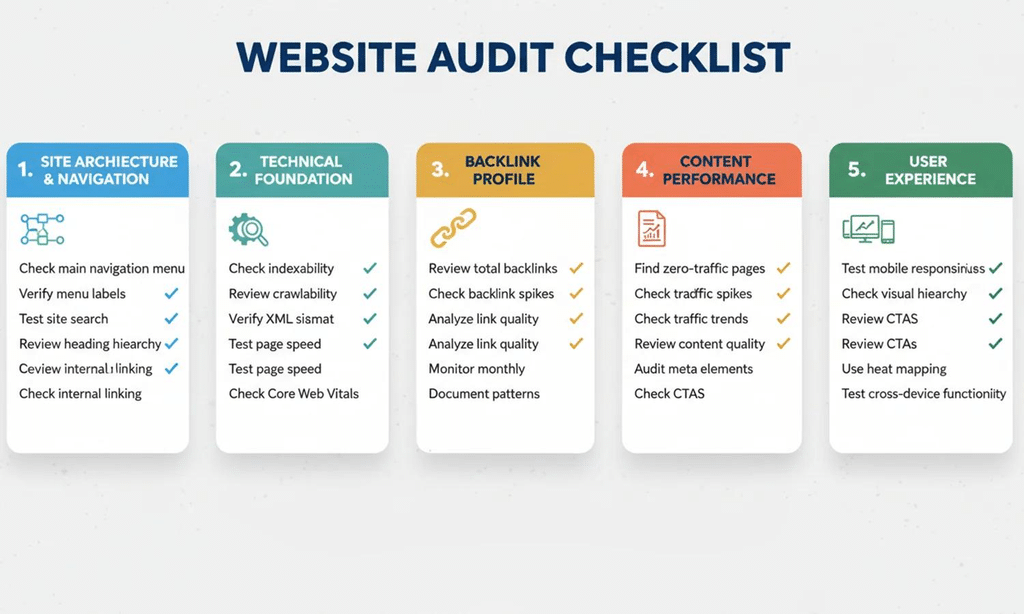
The free SEO audit checklist
Copy this checklist into your own document or spreadsheet and reuse it for every audit.
Before you start
- Audit purpose and key pages agreed
- Access to Search Console, GA4, and Business Profile confirmed
- Audit spreadsheet created and today’s date noted
1. Indexing and crawlability
- Key pages indexed, with the intended canonical (URL Inspection)
- No important pages blocked by noindex or robots.txt
- Pages report reviewed for unexpected exclusions
- XML sitemap submitted, current, and free of broken or redirected URLs
2. Technical crawl
- No broken internal links or server errors
- No unnecessary redirect chains
- One preferred version of the site (https, www or non-www)
- Unique titles and meta descriptions on key pages
- One clear H1 per page
- No orphaned key pages; key pages within a few clicks of the homepage
- Thin archive pages reviewed
- Large images identified
3. Page experience
- Core Web Vitals checked in Search Console or PageSpeed Insights
- Key pages tested on a real phone on mobile data
- Site fully on HTTPS; no security issues or manual actions
4. On-page and content
- Key pages match search intent
- Key pages answer customer questions, including price, process,s and next steps
- Content is up to date and shows who’s behind it
- Pages at positions 8 to 20 and low-CTR pages identified
- Keyword cannibalization checked
- Internal links point to key pages with descriptive text
- Structured data validated, if used
5. Local and off-page
- Business Profile accurate, with the right primary category
- Reviews: number, rating, recency, and replies noted
- Name, address and phone consistent across the web
- Backlinks reviewed in Search Console and Bing
- Brand search checked for outdated or negative information
6. AI search readiness
- Site not excluded from Google’s generative AI features
- OAI-SearchBot and Bingbot not blocked unintentionally
- Key pages offer original, specific information
- Baseline taken from Search Console’s AI report, Bing’s AI report, and GA4’s AI Assistant channel
7. Report
- Every finding rated for severity and effort
- Top 10 to 15 actions listed with owners
- One-page summary written in plain language
- Baseline metrics recorded
- Next review date set
Frequently asked questions
What is an SEO audit?
An SEO audit is a structured review of a website to find what’s helping or hurting its visibility in search. It covers indexing, technical health, page experience, content, local and off-page signals, and now AI search readiness, then prioritizes what to fix.
How long does an SEO audit take?
For a small business site of a few dozen pages, a focused audit can take a day or two. Larger or more complex sites take longer. Writing a clear, prioritized report often takes as long as the checks themselves.
Can I do an SEO audit for free?
Yes. Google Search Console, the free version of Screaming Frog (up to 500 URLs), PageSpeed Insights, Lighthouse, GA4 and Bing Webmaster Tools cover the essentials for most small and medium sites.
How often should I audit my website?
A full audit every six to twelve months suits most small sites, with lighter monthly checks in Search Console. Audit again after a redesign, migration, or sudden traffic drop.
What’s the most important part of an SEO audit?
Indexing comes first, because pages that aren’t indexed can’t rank. After that, the biggest gains usually come from making key pages genuinely useful and matched to search intent.
Do I need to fix every issue an SEO tool reports?
No. Many tool warnings have little real impact. Prioritize issues by their effect on important pages and the effort needed, and fix the high-impact ones first.
Does an SEO audit help with AI search?
Largely, yes. Google says optimizing for its AI features is still SEO, so the same fundamentals apply. An audit should also check that you haven’t unintentionally blocked AI search crawlers and that key pages offer original information worth citing.
Where can I learn to do SEO audits hands-on?
Practice on real websites is the best teacher: your own, a friend’s business, or a volunteer project. At Web Marketing Academy, SEO auditing is part of hands-on SEO training, with learners auditing live project websites using tools such as Search Console and Screaming Frog.
